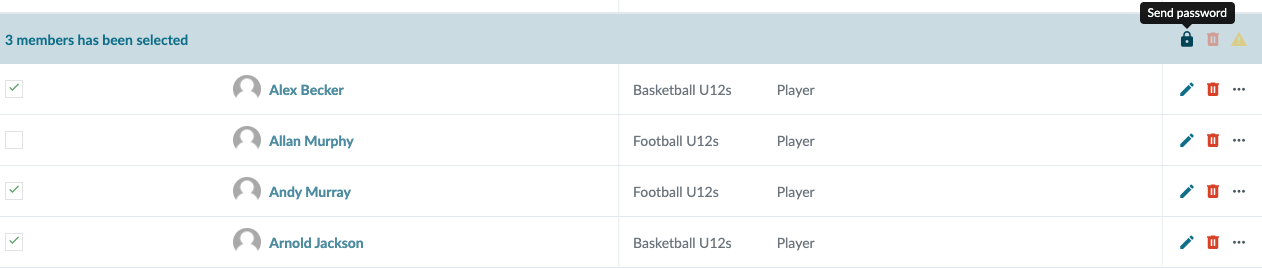
How do I assign a new password to a member?
Go to Members
- Click on at the bottom of the screen
- Click on at the bottom right
- Click on Send password
- Choose the right member
- Finish with the green Send button
The member will now receive an email with a link to SportMember where the password can be changed.
However, the member can choose to ignore the email and not click on the link provided. In this case, the password will not be changed and the member will keep his/her current password.
Note: Please make sure that you have selected the correct team in the team menu at the top right when you want to send a new password to a member of this team
Open Members
- Click on in the top left corner
- Click on MEMBERS
- Find the right member and click on in the column Actions next to the name
- Click on Send password
The member will now receive an email with a link to SportMember where the password can be changed.
However, the member can choose to ignore the email and not click on the link provided. In that case, the password will not be changed and the member will keep his/her current password.
Note: Please make sure that you have selected the correct team in the team menu at the top right when you want to send a new password to a member of this team.
- TIP: You can select several members at once at the far left of the members' names (tick the box). Now you can assign new password to several at the same time by clicking on under Actions in the top row.