How do I associate driving with an activity?

When can we use the driving function?

- When you as a coach have agreed that driving may be arranged for the specific activity


- Once you have registered for the activity, you can set up/register for a lift


- When the activity has not yet taken place


Go to the specific activity

  1. Press  or   at the bottom of the screen
  2. Find the specific activity and click on it


Enable driving

Note: As a coach, you MUST turn on driving for individual activities before you/members can sign up for driving/create lifts!
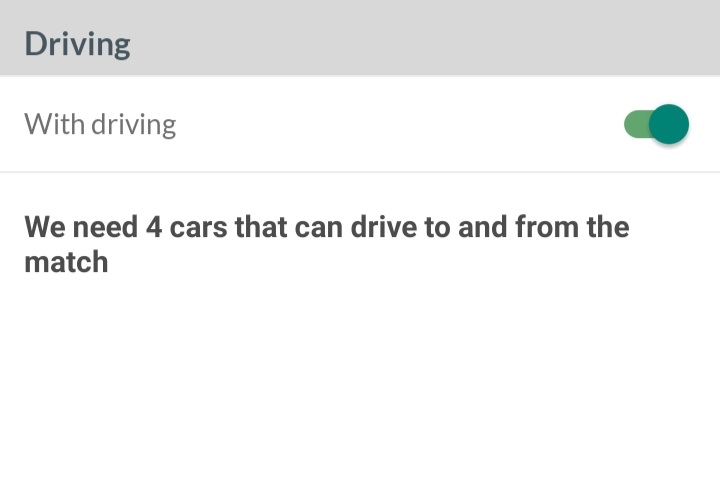
  1. Create an activity or click on  at the bottom right to edit an existing one
  2. Press  Edit activity
  3. Press Advanced at the top
  4. Enable With driving at the bottom
  5. Finish with Create/Save
Feel free to add a comment to the ride so you can appeal to members to create the ride


From here, it is now up to members and parents to create/apply for a lift or to drive alone. Once the lift is created, registered members/parents can sign up for the available seats themselves.


Manage driving

As a coach, you can manage the ride for the rest of the team. Once a lift is created by a member/parent, you can change it like this.

Note: At least one lift MUST be created by a member/parent/coach before you as a coach can manage the team's driving.

  1. Click on  at the bottom right
  2. Go to  Manage rides


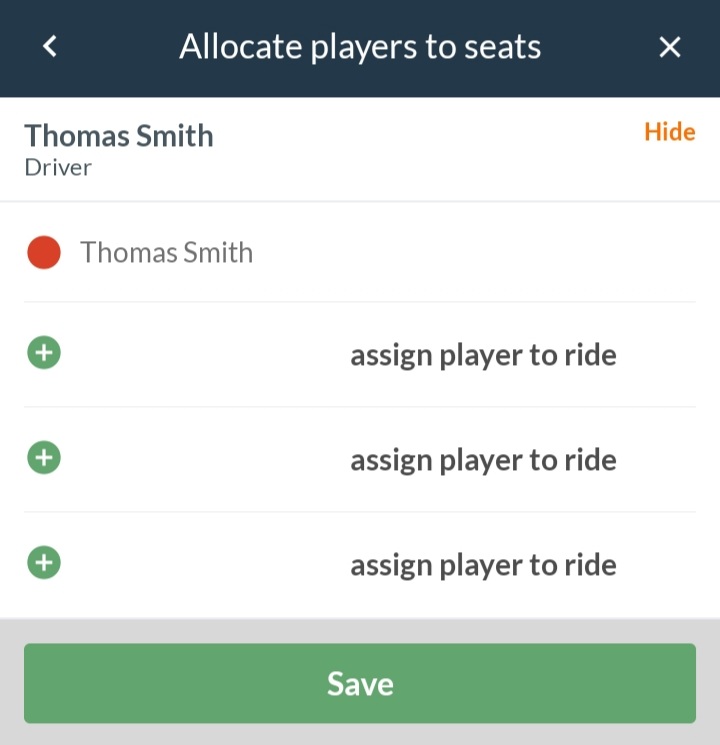
Here you can both assign members to vehicles and/or delete vehicles


Det finns inget svar på den här frågan som gäller användningen av SportMember från en dator.
Var denna artikel hjälpsam?
0 av 0 tyckte att det här var hjälpsamt

Är du redo att börja?

Utforska SportMember, eller skapa ett konto nu och börja hantera din klubb. Du kan också kontakta oss för att få hjälp med att starta din klubb.
Vad kostar det?
Vilka är klubbens behov? Basic- eller PRO-prenumeration?
Priser
Funktionsoversigt
Ingen klubb är den andra lik. Våra funktioner täcker dina behov.
Funktionsoversigt