How do I merge two similar profiles into one?

Why is it a good idea to merge profiles?

- The person can have unlimited roles/team affiliations on one profile


- The person can use the same login for all their team affiliations


- The person can switch between team views/calendar views in their SportMember app in case of multiple team affiliations


- When merging multiple profiles into one profile, remember to click on the profile you want to delete!

- When merging two profiles, one is deleted while all information is transferred to the remaining profile


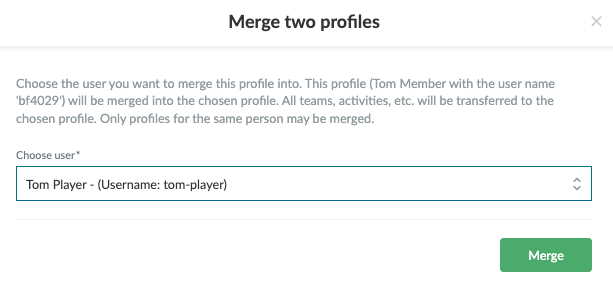
To merge two profiles into one profile, make sure you access the profile you want to delete (the other profile will be the remaining one).

Note: Two profiles can only be merged if:

  • Both profiles have the same first name
  • Both profiles are affiliated to the same club on SportMember
  • Both profiles are NOT affiliated to other clubs on SportMember
  • Both profiles have at least one email address in common

TIP: If there is a middle name in one profile, edit this first. Then you can be allowed to merge the profiles.

Det finns inget svar på den här frågan om användningen av SportMember från appen.


Open Members

  1. Click on  Club in the top left corner
  2. Click on Members
  3. Find the profile you want to delete and click on the name
  4. Click on More at the top right
  5. Click on Merge two profiles
  6. Select user and finish with Merge


Var denna artikel hjälpsam?
0 av 1 tyckte att det här var hjälpsamt

Är du redo att börja?

Utforska SportMember, eller skapa ett konto nu och börja hantera din klubb. Du kan också kontakta oss för att få hjälp med att starta din klubb.
Vad kostar det?
Vilka är klubbens behov? Basic- eller PRO-prenumeration?
Priser
Funktionsoversigt
Ingen klubb är den andra lik. Våra funktioner täcker dina behov.
Funktionsoversigt